
Settings
Settings is where you manage your workspace, experiment defaults, reports, and billing. Reach it from the Settings item in the sidebar. Its sections sit in a left rail, grouped into four:
| Group | Sections |
|---|---|
| Workspace | General · Properties · Members · Billing & usage |
| Experiments | Experiment defaults · Features · Analytics & privacy |
| Reports | Report branding · Notifications |
| Developer | API keys |
API keys appears only when the API surface is switched on for your workspace; a link to it otherwise lands on General.
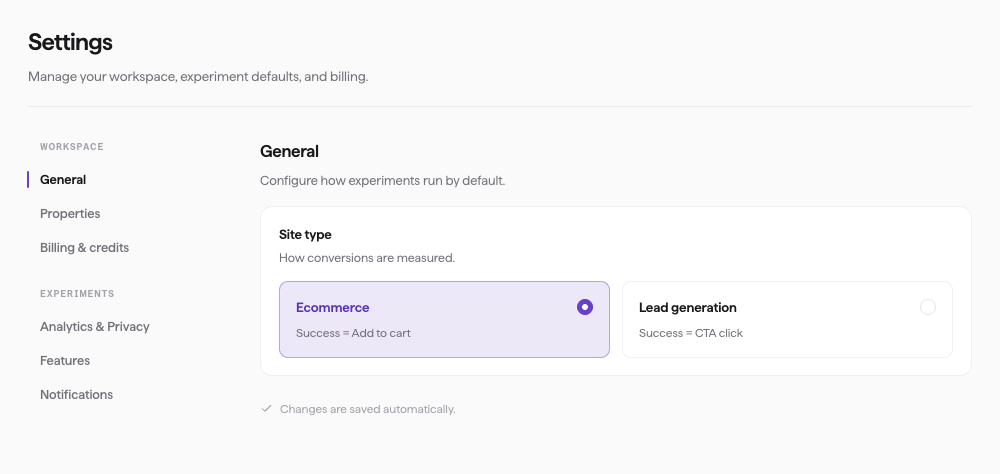
Settings — the sections in the left rail, with General open. This screenshot shows an earlier, ungrouped rail; the table above is the current layout.
General
Name and locate the workspace itself.
- Workspace name — what the workspace is called across Squoosh.
- Primary property — the site Squoosh opens on by default.
- Time zone — the region dates and reports are shown in.
Properties
A property is a connected site you run experiments against. This section lists your properties, each with its name, an Active status, and its property ID. Use Add property to connect another site. The default plan includes one property; adding more prompts Upgrade your plan for more properties. You can't delete your last property.
Members
Invite teammates into the workspace and set what each of them can do.
Billing & usage
See your current plan, Tests left this month, and your Credits remaining balance, along with your payment method and billing email. Credits are what you spend to run tests.
Self-serve billing isn't available yet. To top up credits or change your plan, use Contact sales, which emails the Squoosh team at support@squoosh.ai.
For how credits and tests work, see Credits and billing.
Experiment defaults
Set where every new experiment on this property starts. The wizard can still adjust the device mix per run.
- Site type — choose Ecommerce (success = "Add to cart") or Lead generation (success = "CTA click"). This sets what a synthetic shopper is trying to do on your pages.
- Goals per shopper — how many objectives each shopper attempts in a session.
- Default device profile — the device mix a new experiment starts from.
Features
Turn experiment capabilities on or off for the whole workspace.
- Human behavioral biases — applies anchoring, loss aversion, and social proof so shoppers hesitate the way people do.
- Talk to your shoppers — lets teammates interview finished synthetic shoppers about their recorded sessions.
Analytics & privacy
Control how Squoosh's synthetic traffic is handled so it doesn't show up in your analytics or get counted as real visits. See Keep synthetic traffic out of your analytics for what each option does and how to verify it.
Report branding
White-label the reports you export — organisation name, "Prepared by", logo, accent colour, footer text, and website.
Notifications
Choose what Squoosh emails you about.
- Experiment complete — email the experiment's creator when a run finishes.
- AI experiment summary — generate a plain-language written read of what drove the result, shown with the experiment's results in Squoosh. Completion emails never include the outcome; they only tell you the run finished.
API keys
Create and revoke the keys that authenticate calls to the Squoosh API. This section is only present when the API surface is enabled for your workspace.